Field Planning
Welcome to the Field Planning experience in Granular Insights. In this video, we’ll walk you through the latest features designed to make your planning process more efficient and insightful.
Go to us.app.granular.ag
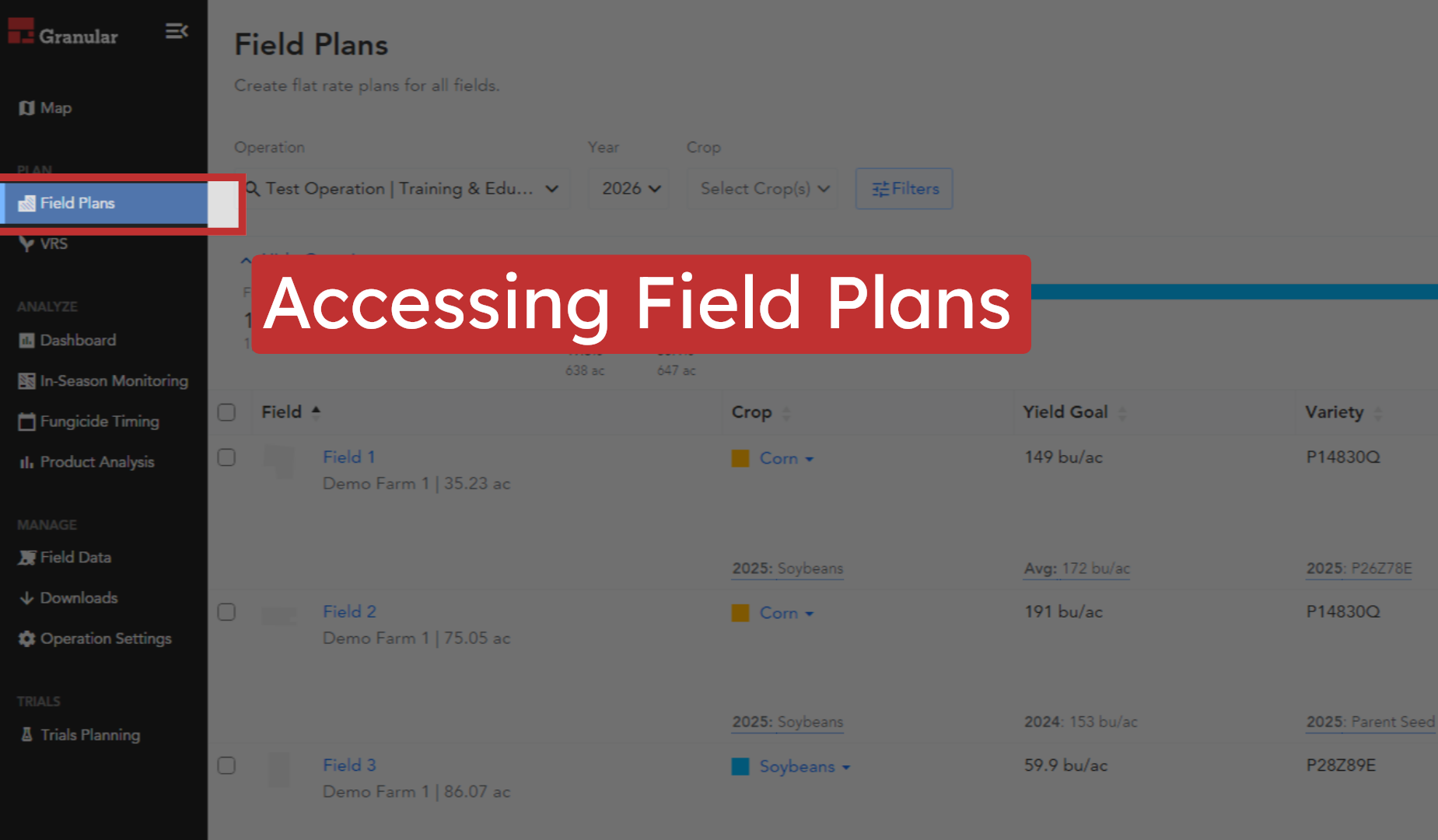
1. Accessing Field Plans
Start by navigating to the Field Planning workspace in the web application. Here, you’ll find all your fields and planning tools in one convenient location.
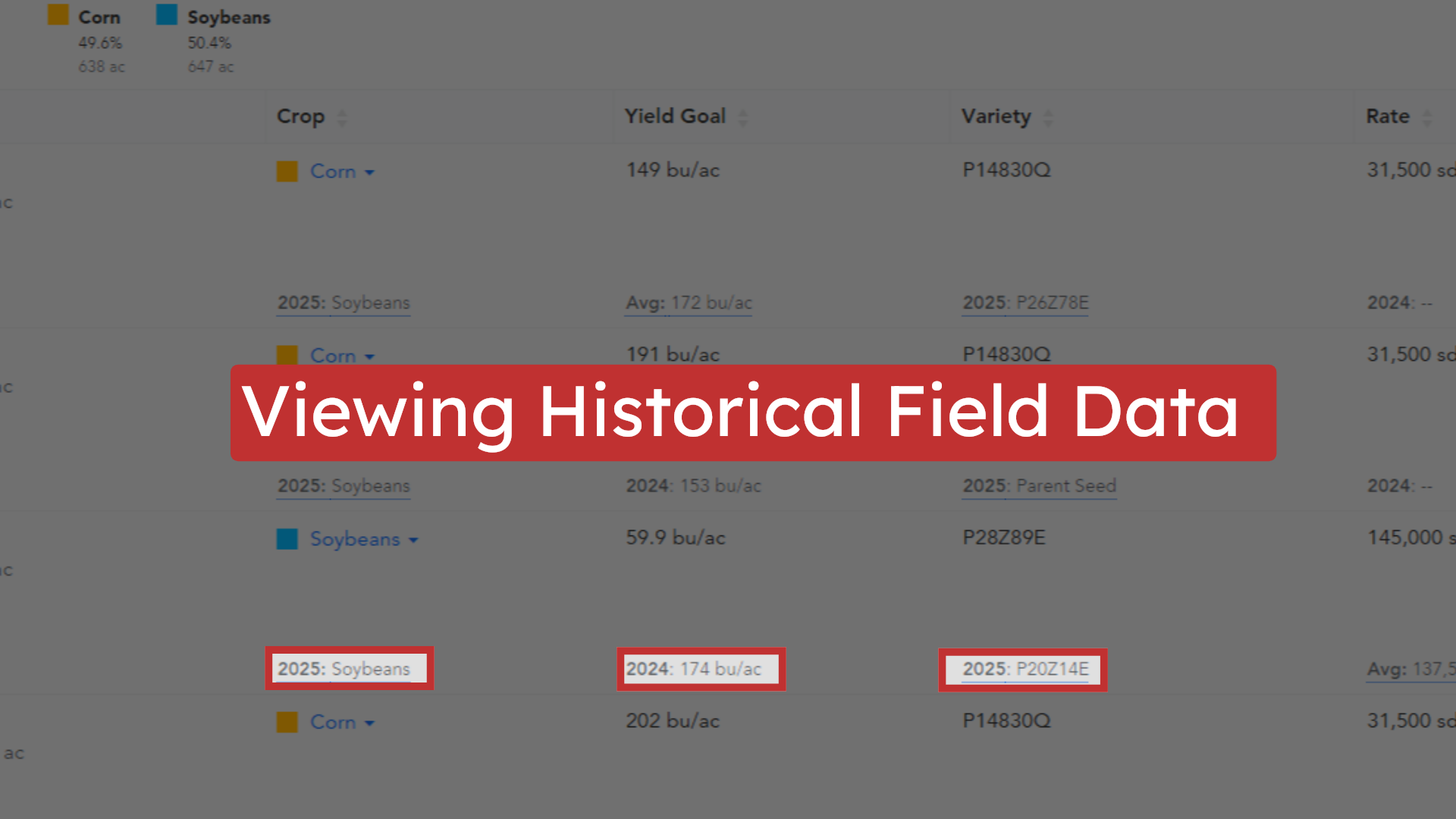
2. Viewing Historical Field Data
You can now view up to six years of historical information for each field, including previous crops, varieties, yield goals, and seed rates. This helps you plan with confidence, using your field’s unique history.
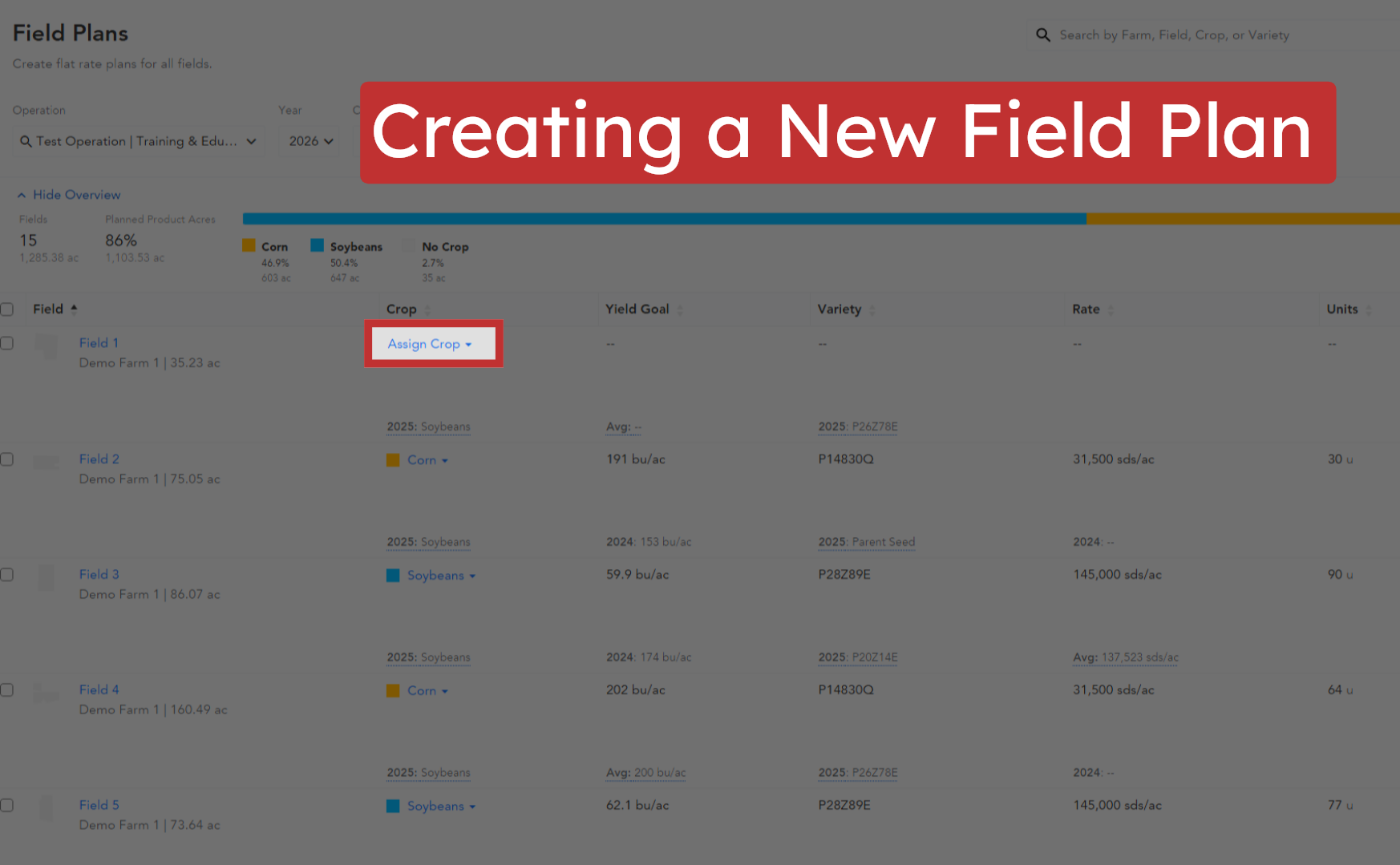
3. Creating a New Field Plan
To create a new field plan, select your field, choose a crop, and add a variety from the dropdown menu.
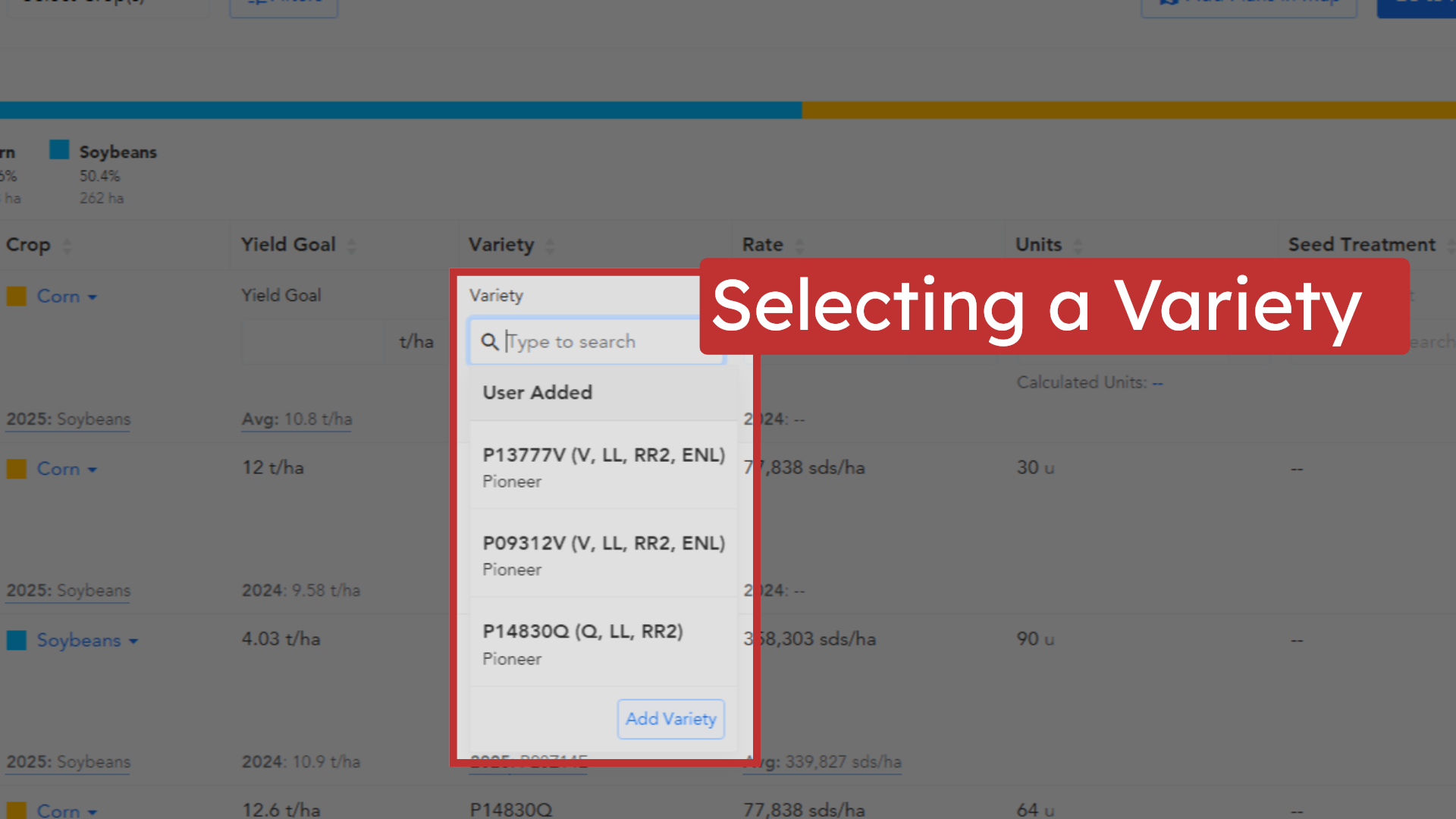
4. Selecting a Variety
You can pick from invoiced or allocated products, or create custom products to fit your needs. Set your desired seed rate and yield goal, then click Save to create your plan.
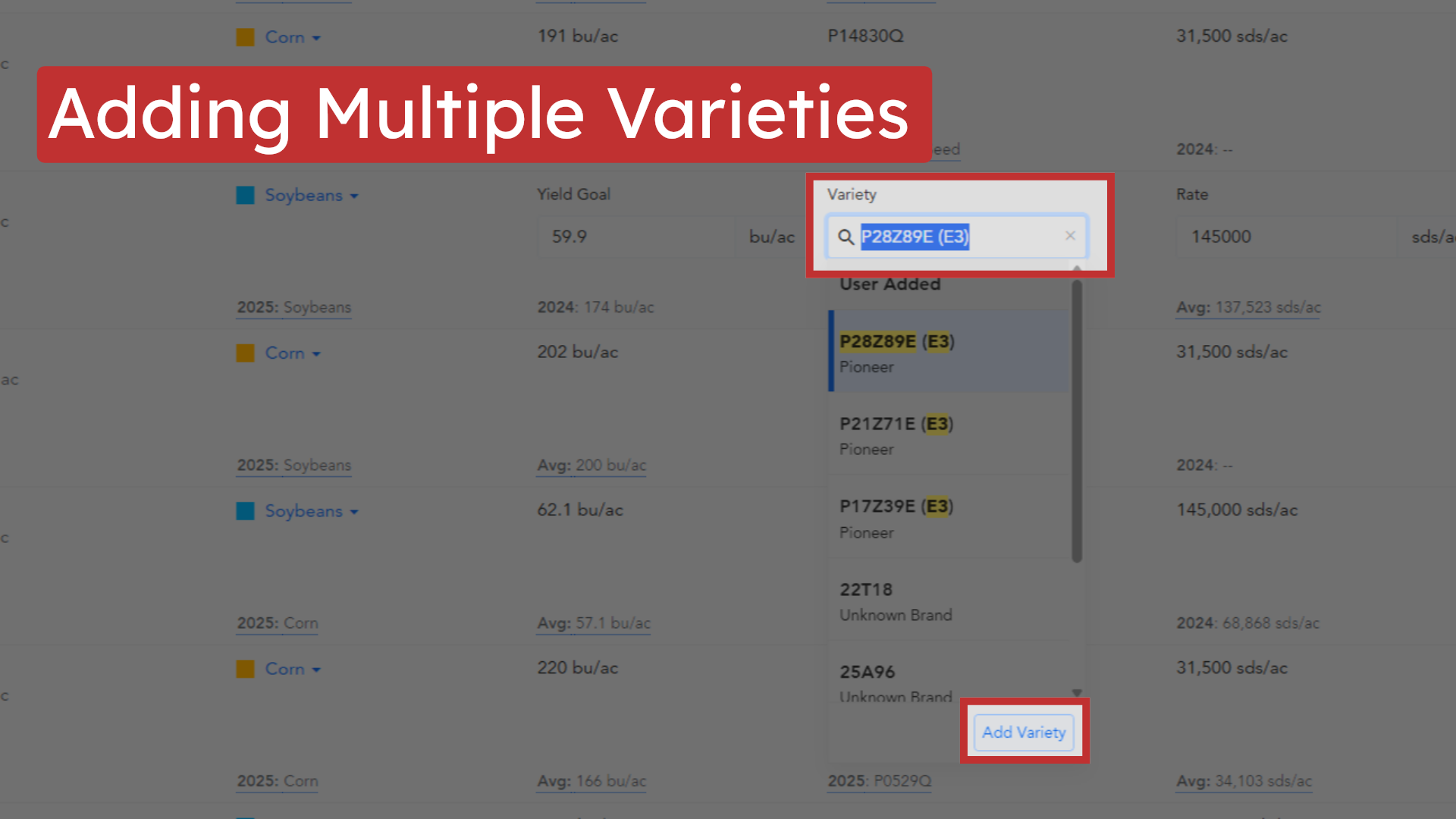
5. Adding Multiple Varieties
Easily add more than one variety to a field plan, giving you flexibility to match your field’s needs.
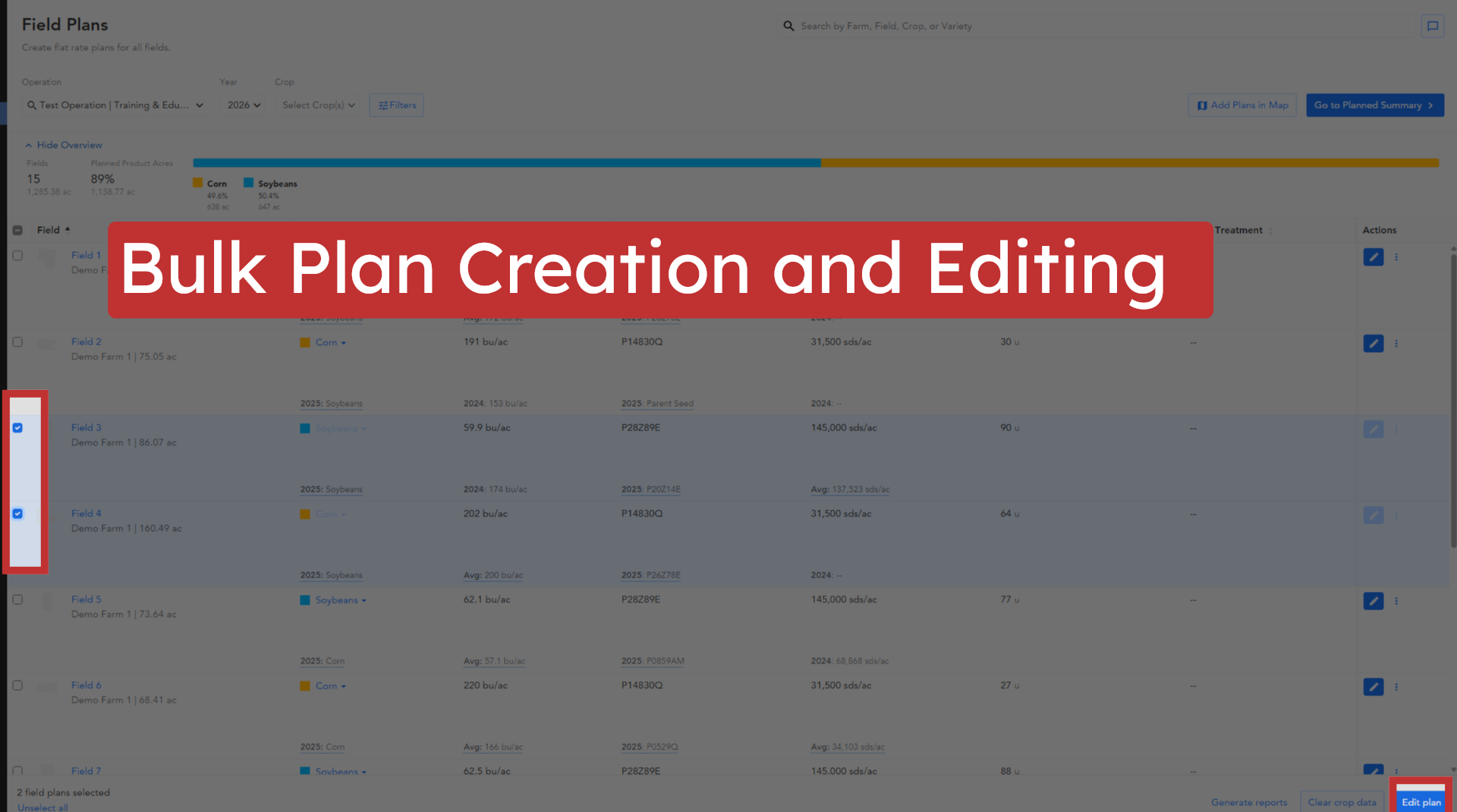
6. Bulk Plan Creation and Editing
Save time by selecting multiple fields and creating or editing plans for all of them at once. Assign crops, varieties, seed rates, and yield goals in bulk, then save your changes.
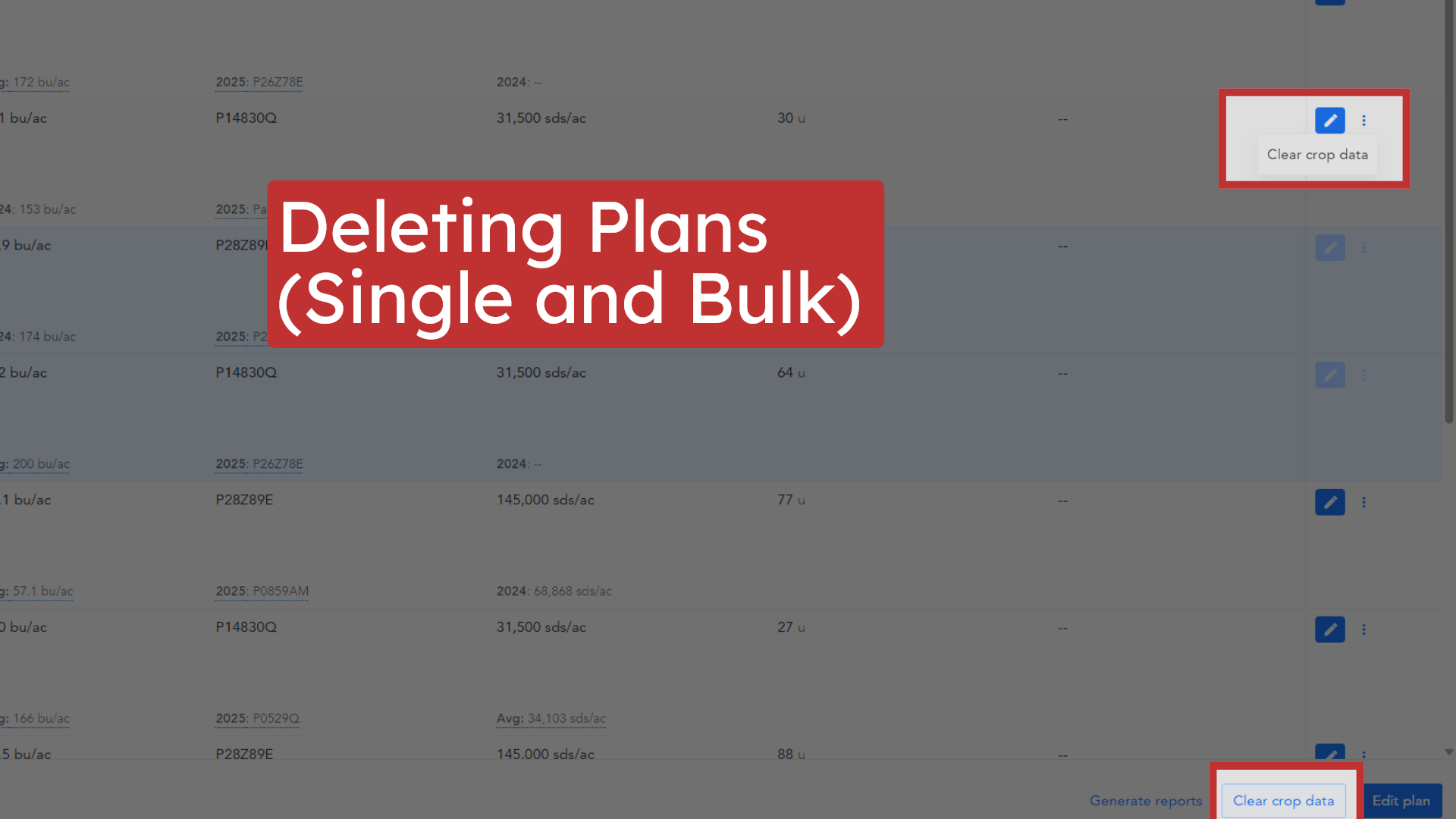
7. Deleting Plans (Single and Bulk)
To clear a plan from a single field, use the menu next to the field and select ‘Clear Plan.’ For multiple fields, select them and use the ‘Clear Plan Data’ button. You’ll receive a warning before any plans are deleted.
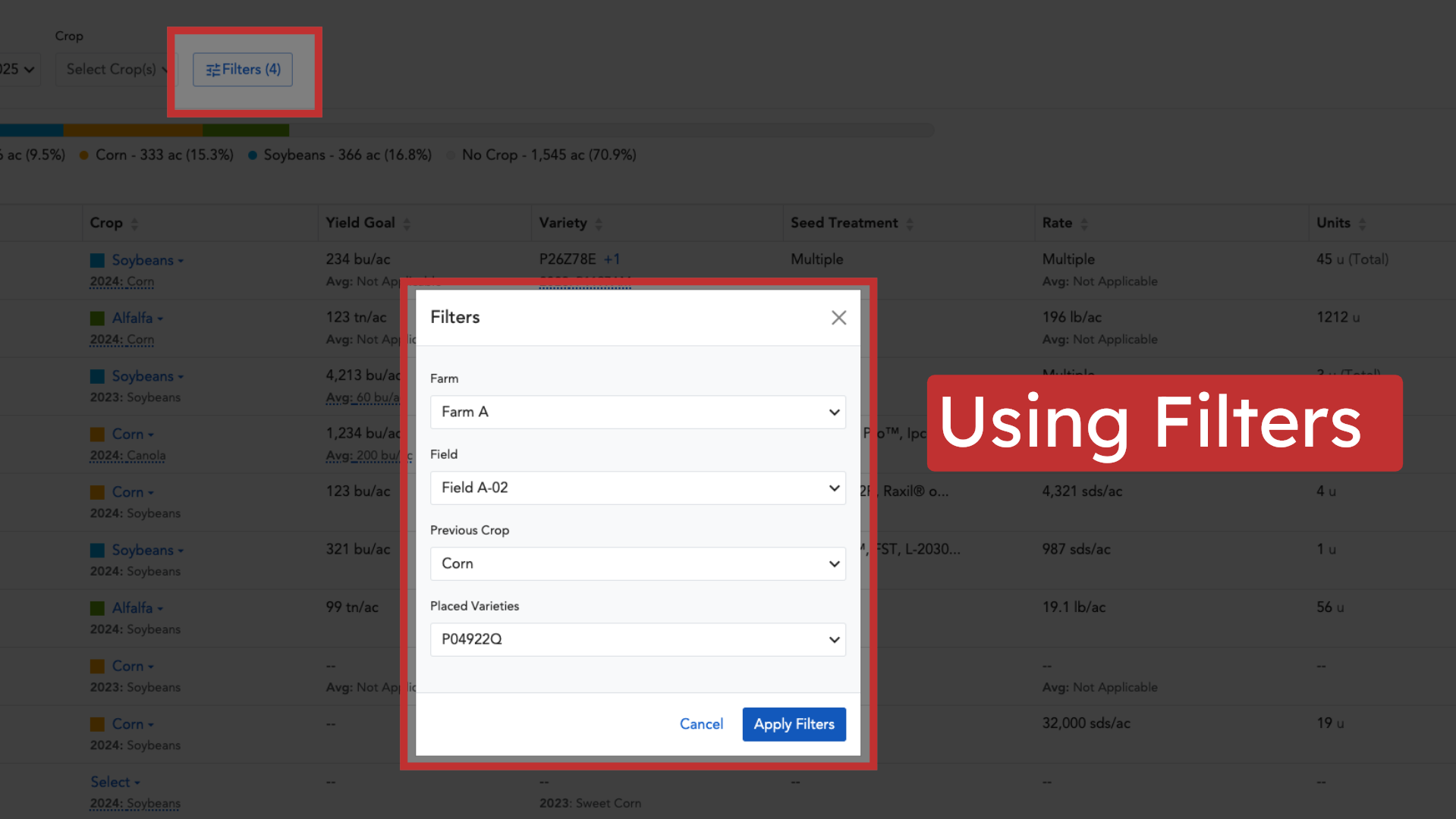
8. Using Filters
Quickly find the fields you need by filtering by current crop, previous crop, farm, or field name.
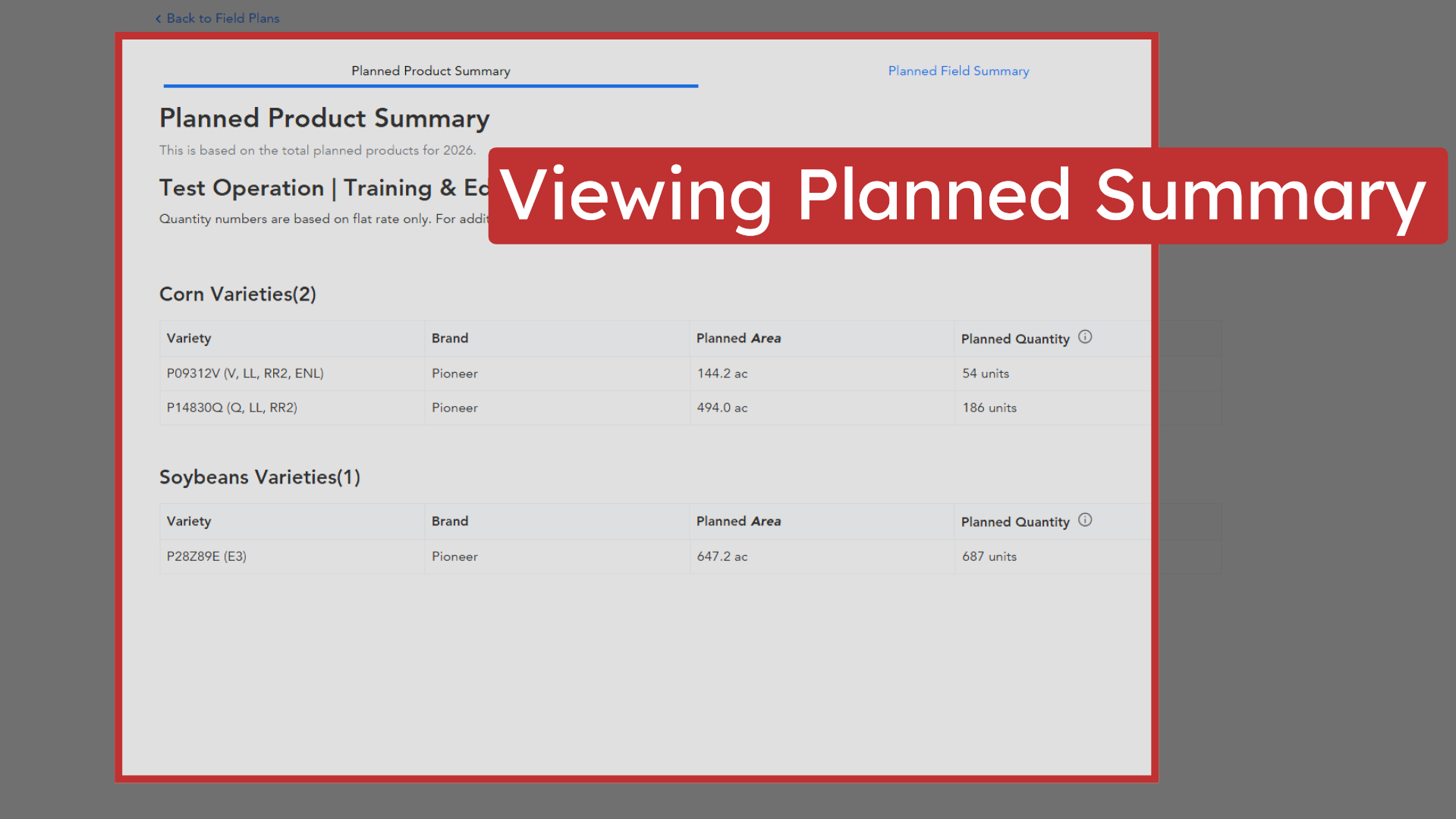
9. Viewing Planned Summary
The Planned Summary tab provides a clear overview of your planned product units, organized by plan type, product, and field.
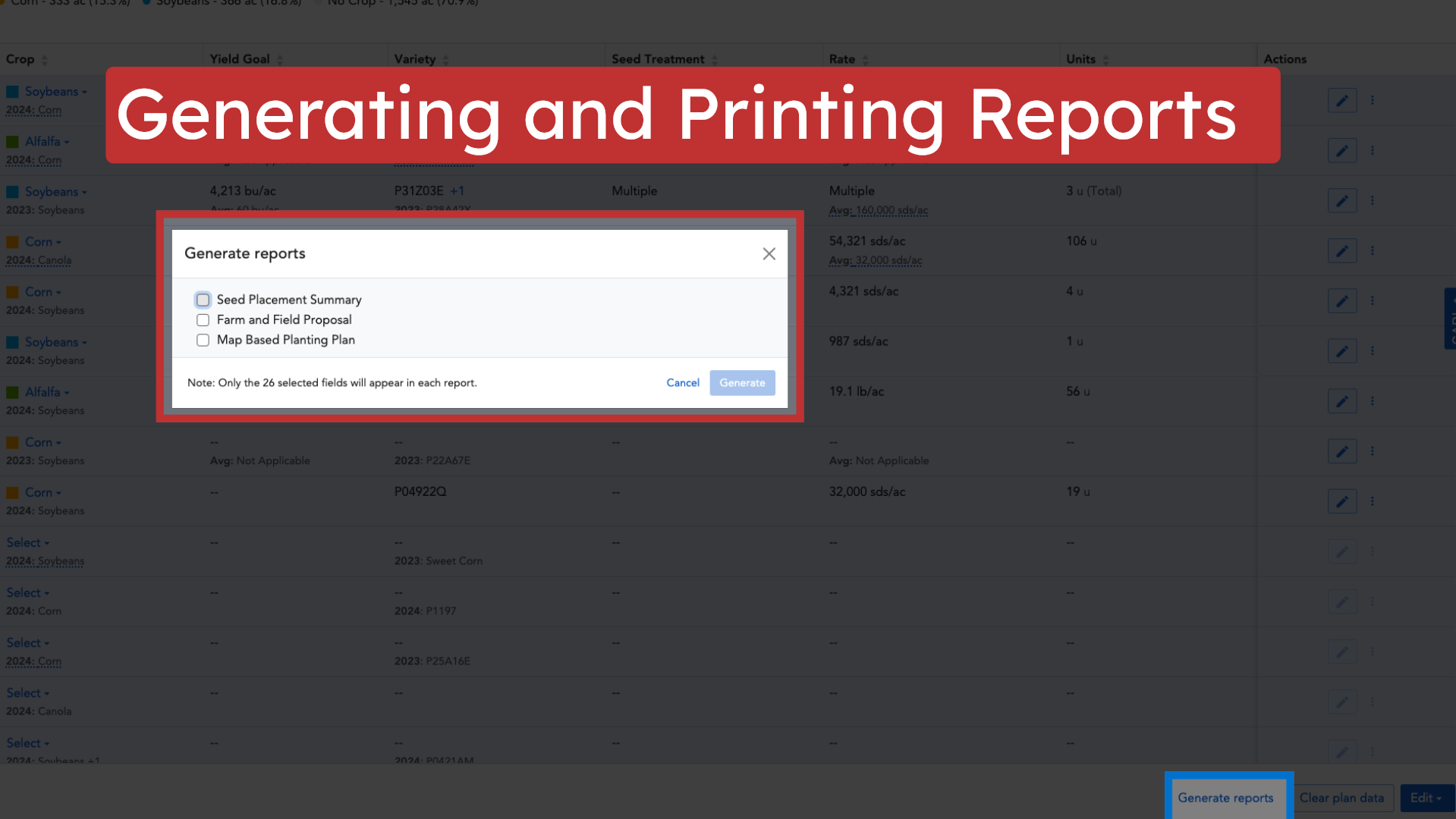
10. Generating and Printing Reports
Generate detailed reports, including Seed Placement Summaries and Farm and Field Proposals, for selected fields. You can also print the Planned Summary for easy sharing and record-keeping.
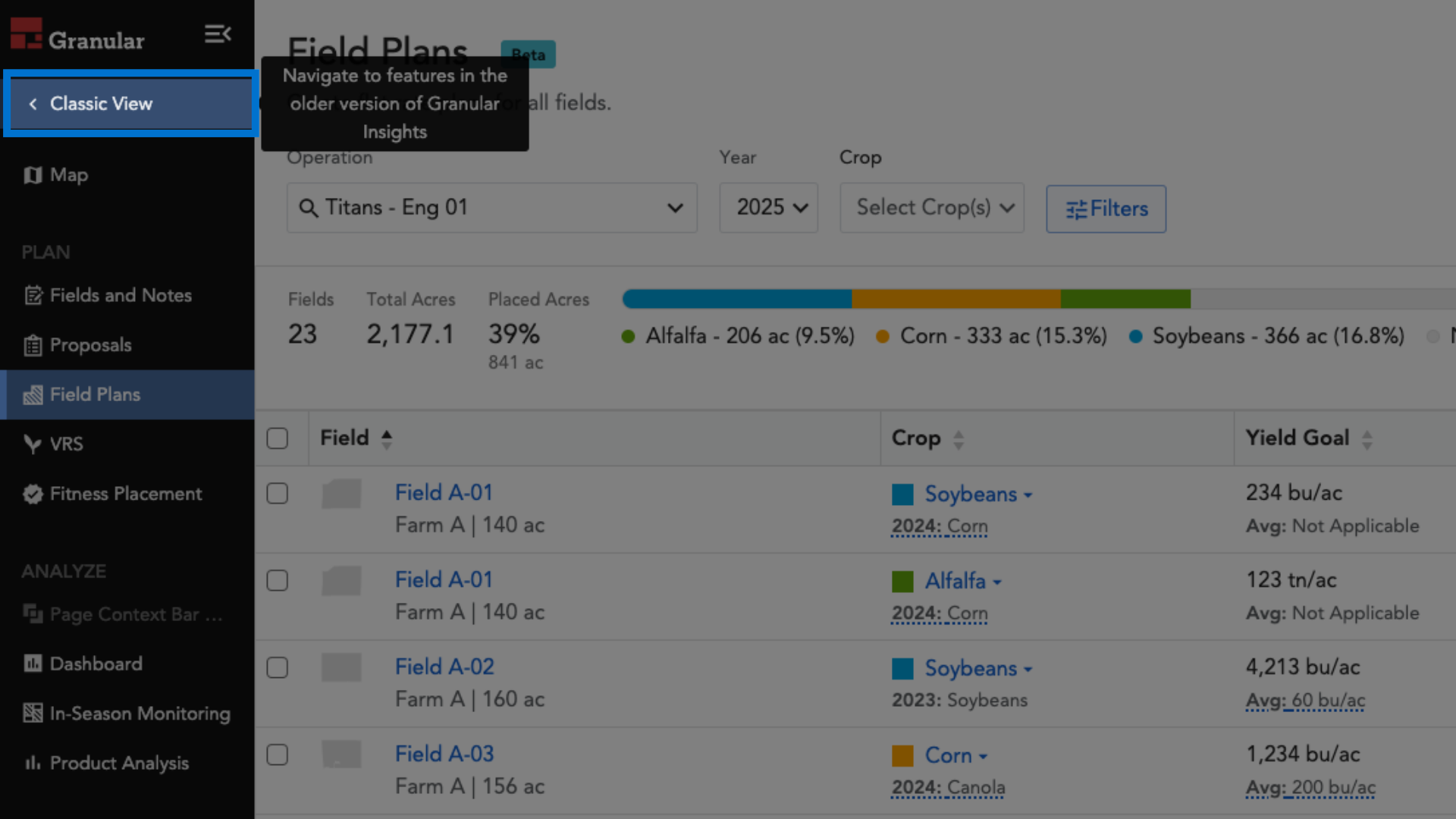
11. Return to Classic View
When you are done in New Insights, you can always return to Classic in the left navigation menu.
That’s a look at the latest Field Planning features in Granular Insights. For more information, visit our Help Center or contact support. Thank you for choosing Granular Insights, and happy planning!