Granular Insights Mobile App
Welcome to the Granular Insights Mobile App. Let's take a look at a few of the new features available to you now.
1. Select a Field
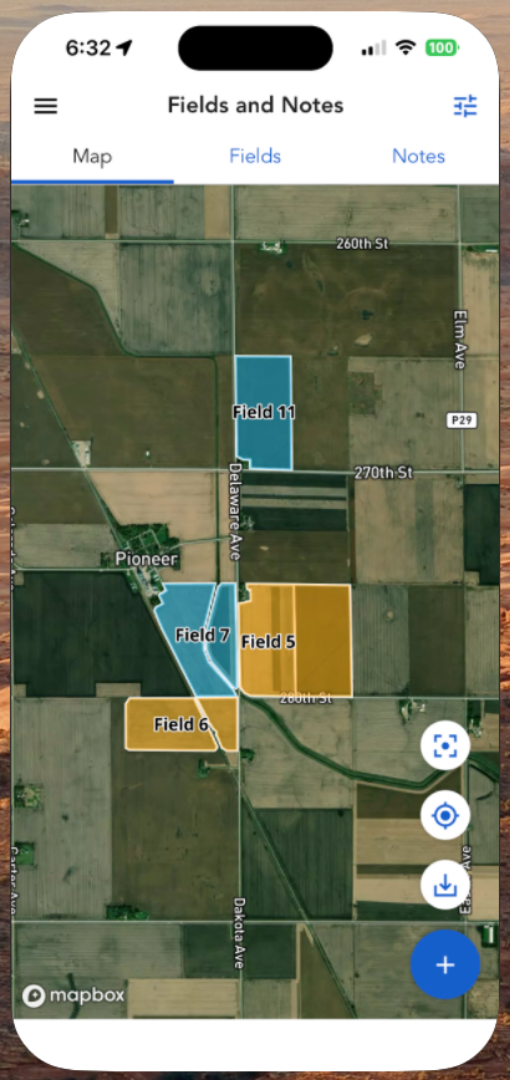
With the new Granular Insights mobile app, you can view all your operations and associated field data at a glance.
2. Structured Notes
When scouting, accuracy is a main priority. Let's look at one of the ways you can now increase your accuracy using Notes.

3. Add a Note
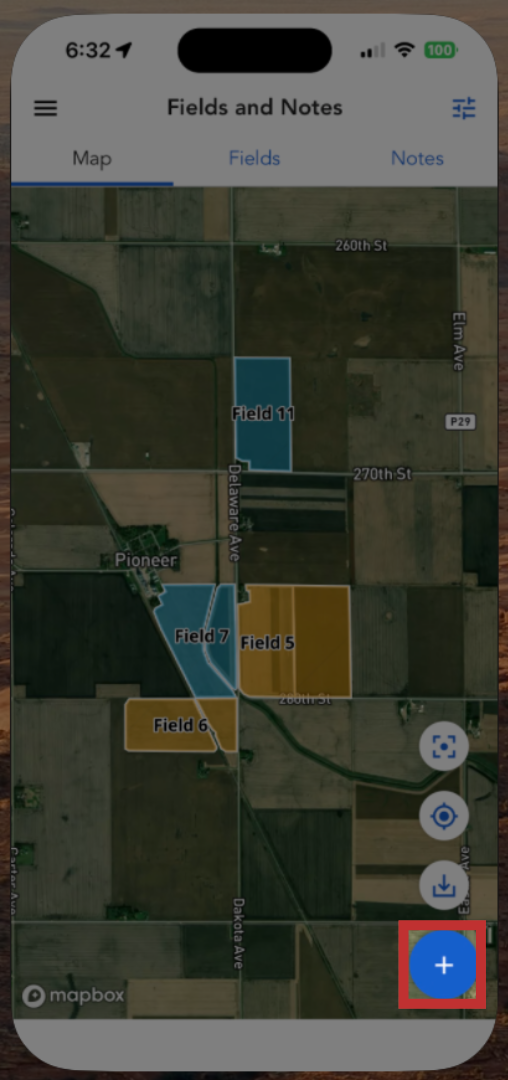
You can add a note by clicking the "+" icon found on any of the main tabs.
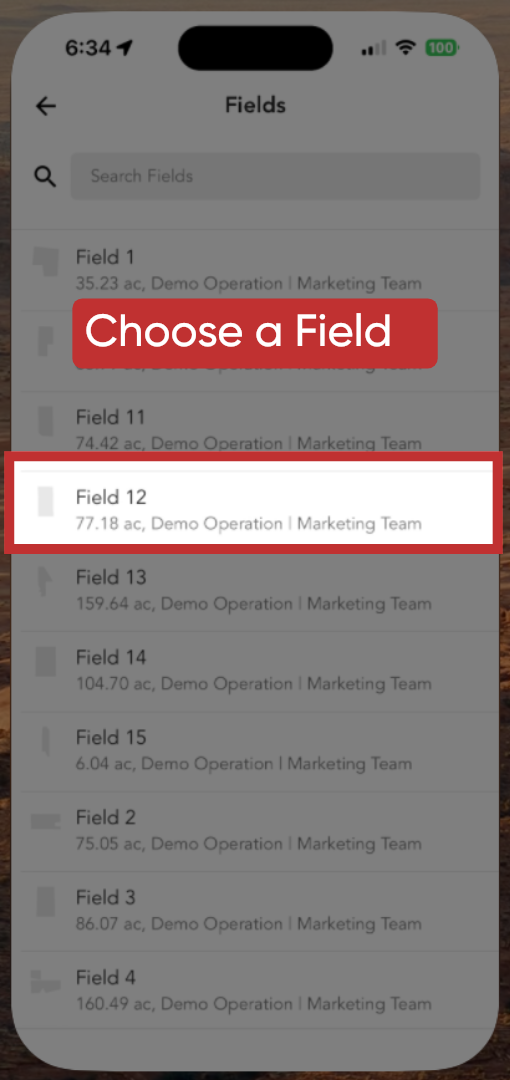
4. Choose a Field
Insights will help ensure you're putting your note in the right spot.
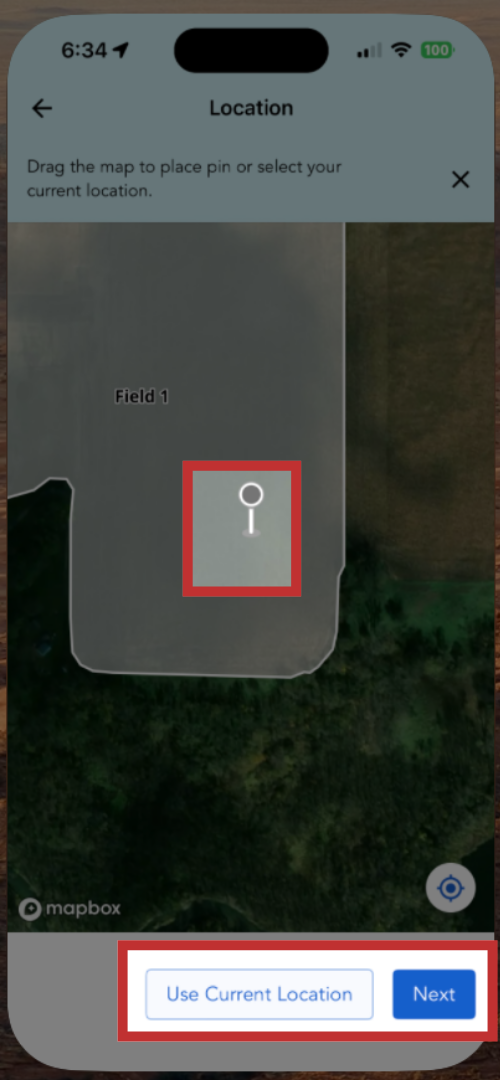
5. Drop a Pin
You can even specify the exact location within a field.
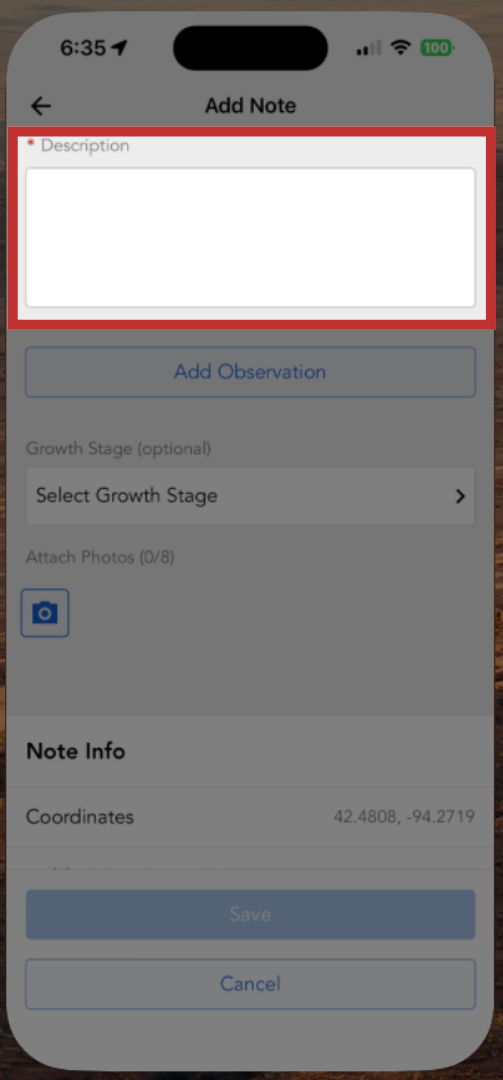
6. Write Your Note
Once you've nailed down your location, you can add your note.
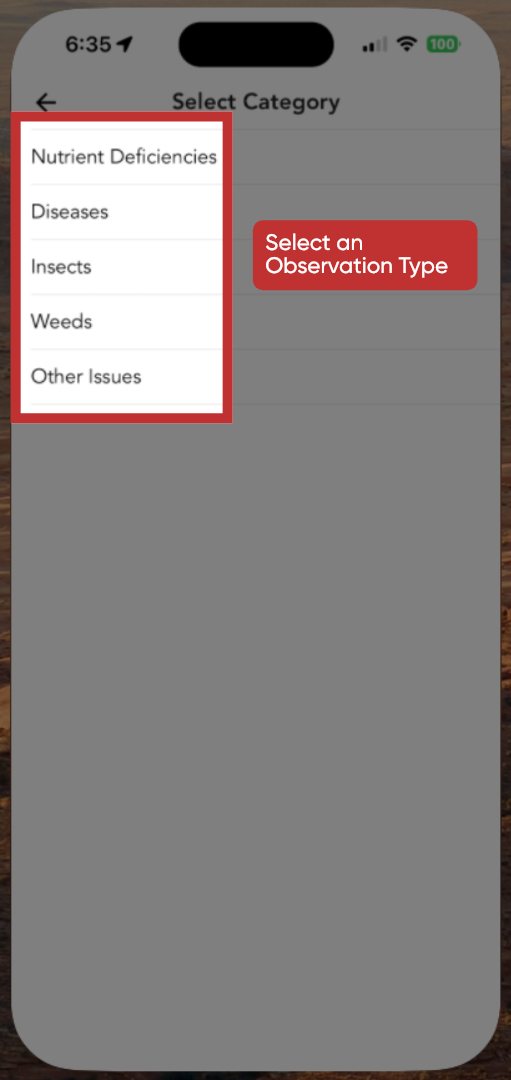
7. Categorize your Note
You’ll categorize your observation in the Observation Type.
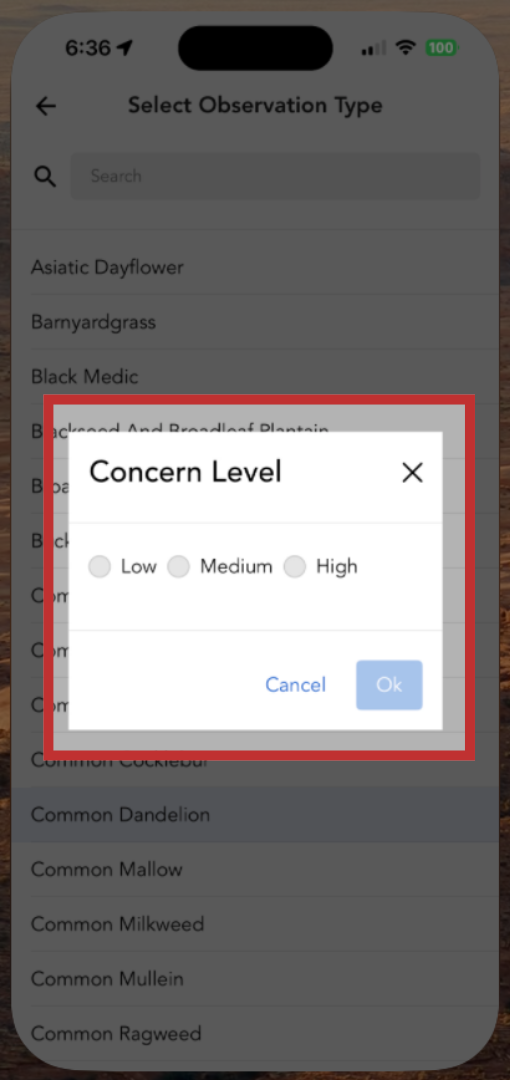
8. Choose a Concern Level
Then select a Concern Level of Low, Medium, or High. This structured data is a key differentiator from the classic app.
9. Field Layers
The new app also allows you to gain deeper context on crop health by viewing Field Layers.

10. Field Layers
You can access supported Field Layers by drilling down to a field level from the main screen.
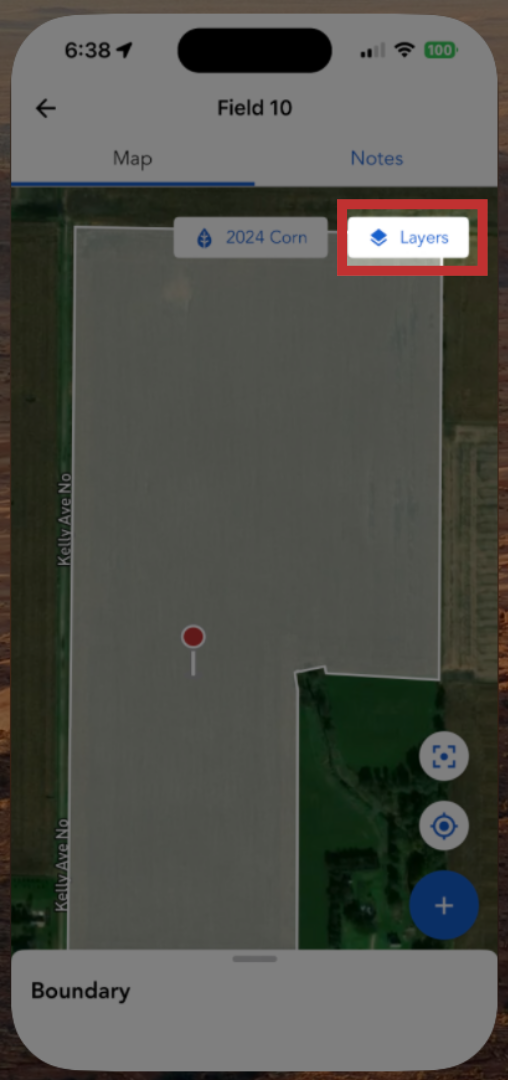
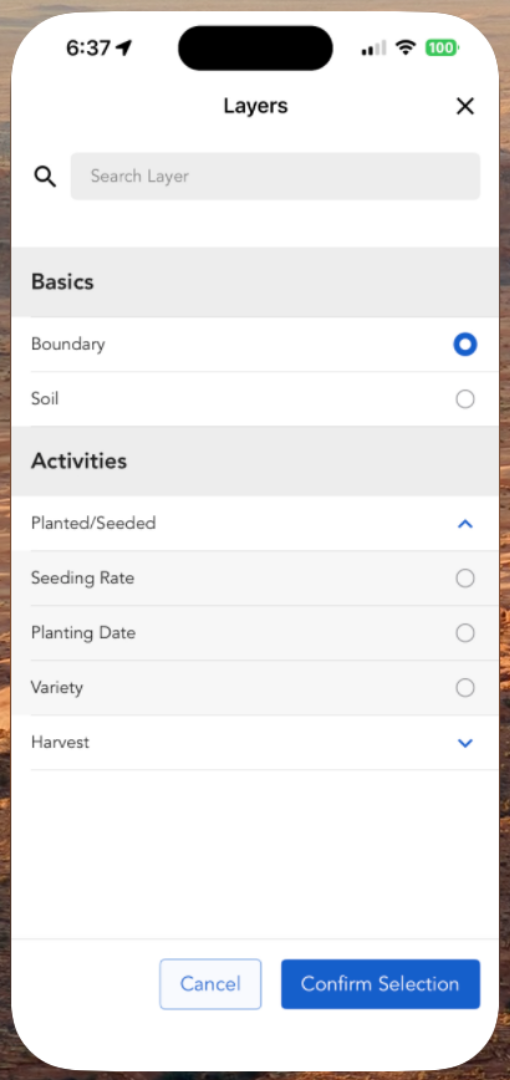
11. Choose a Layer
Some available layers include Planting Date, Seeding Rate, Harvest Yield Layer and Imagery Vegetation Index.
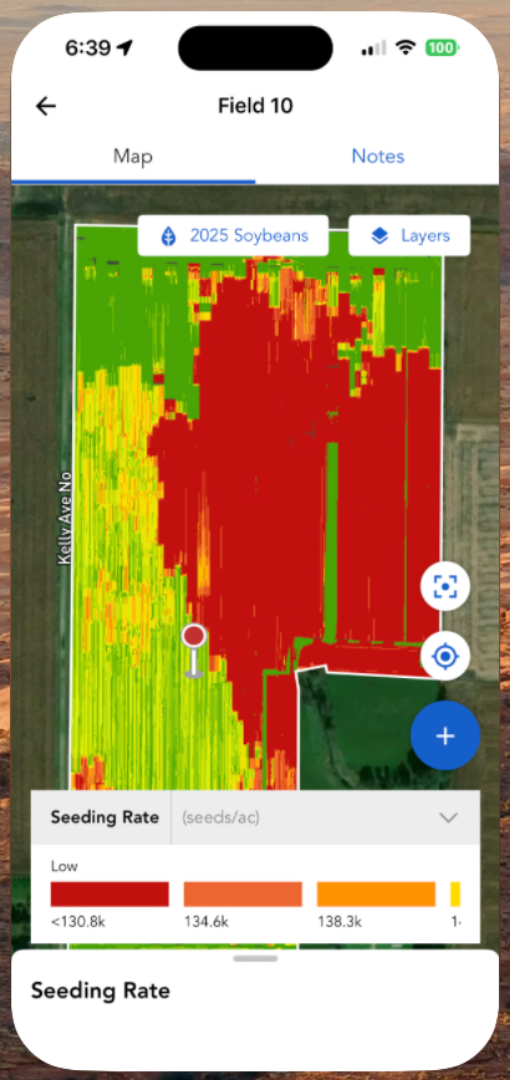
12. View Layer
This native functionality ensures you have the data you need for agronomic decisions while you're standing in the field.
13. Offline Data
Because connectivity isn't always a guarantee, you can proactively download data for the operations you’re visiting that day.
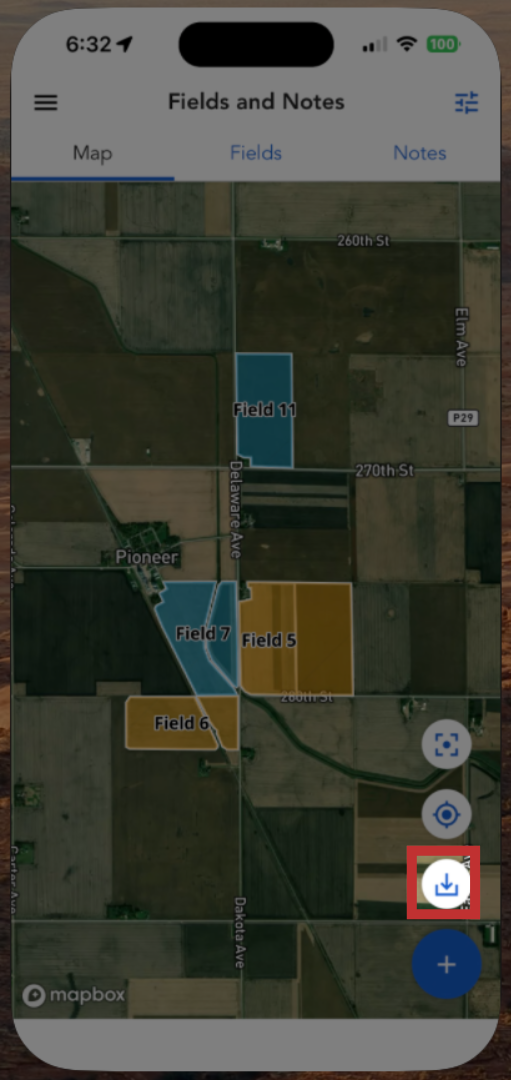
14. Navigate to Offline Downloads
Use the downloads icon in the app to navigate to the Offline Downloads menu.
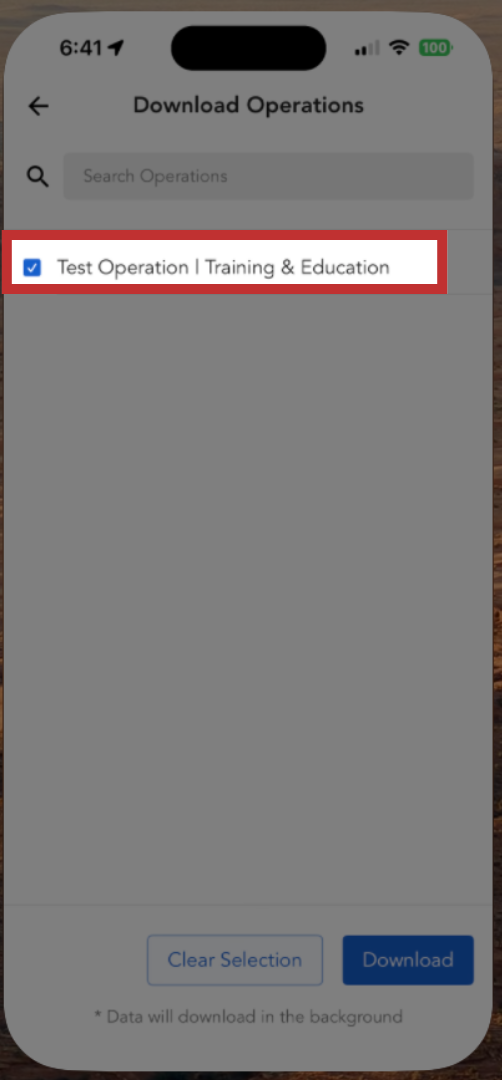
15. Select Operations
In the Offline Downloads menu, select your operations to store layers and notes for up to 72 hours.
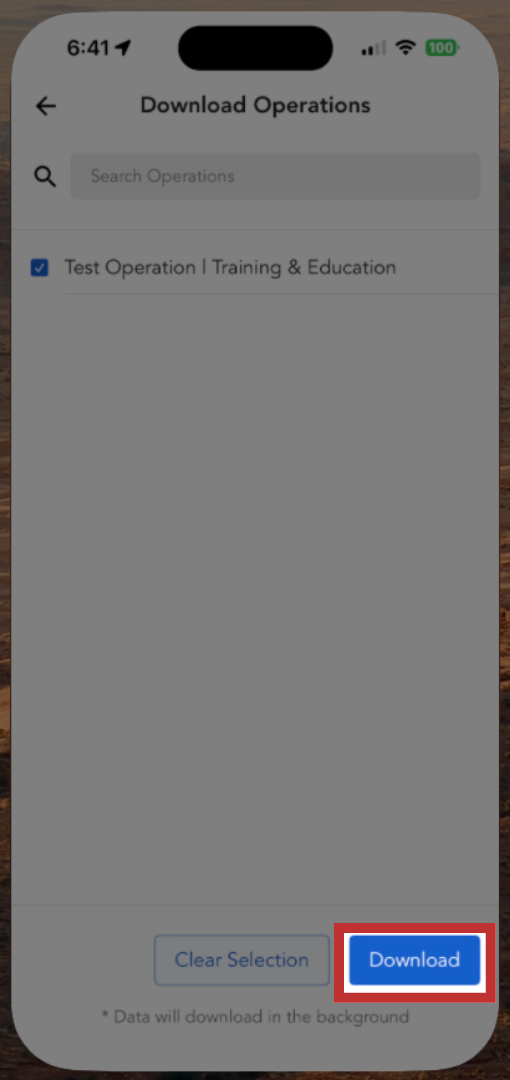
16. Download Operations
This ensures you have handy access to relevant information even when you’re completely off the grid.
Capturing structured data and accessing layers offline allows you to document your season accurately and reference it whenever you need.